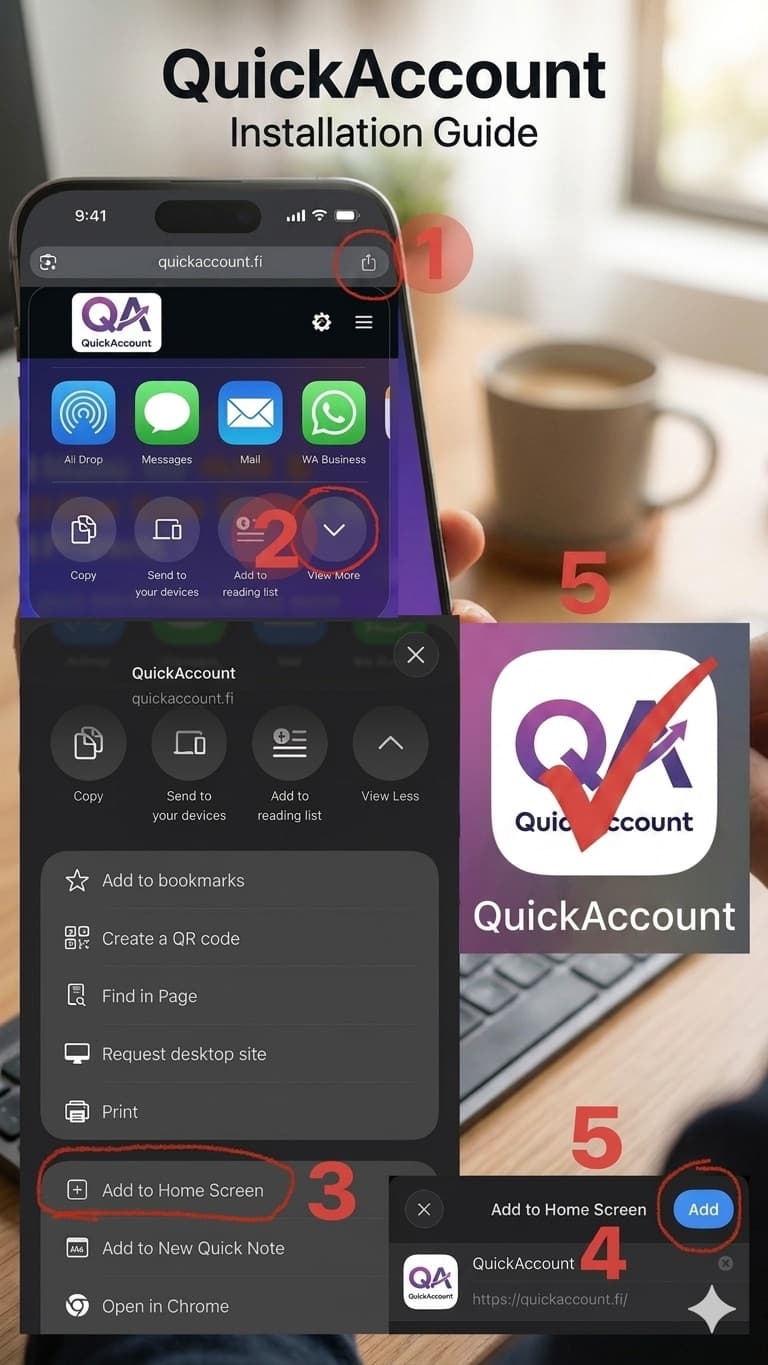
Installation Guide
Mobile App setup for iOS & Android
How to Install the QuickAccount App on Your iPhone
Follow these 5 simple steps to add QuickAccount to your home screen for quick access.
Open Browser
Open Chrome (or Safari) and go to https://quickaccount.fi
Tap Share
Tap the Share icon (the square with an up arrow) located at the top right of the address bar.
View More
Scroll down the menu and tap "View More" (the down arrow icon) to see all options.
Add to Home Screen
Find and tap the "Add to Home Screen" button.
Confirm & Add
You will see the QuickAccount logo. Ensure the "Open as Web App" toggle is ON and tap "Add" in the top right corner.
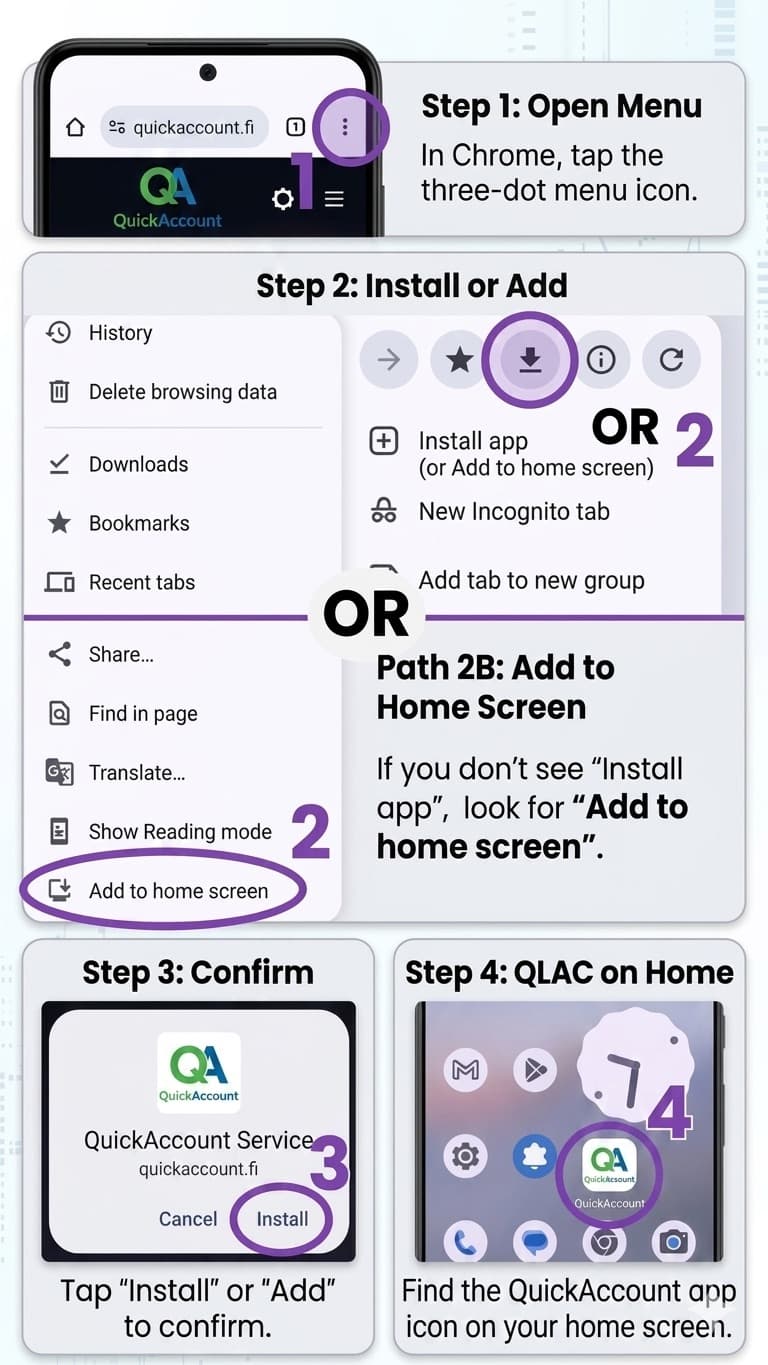
How to Install the QuickAccount App on Your Android Phone
Follow these 4 simple steps to add QuickAccount to your phone for instant access.
Open Menu
Open Chrome and go to https://quickaccount.fi. Tap the three-dot menu icon (⋮) in the top right corner.
Select Install / Add
Option A: Tap the Install icon (down arrow inside a square) at the top of the menu. Option B: Scroll down and tap "Add to home screen".
Confirm Installation
An "Install app" window will appear for QuickAccount. Tap the blue "Install" button.
Ready to Use!
The QuickAccount icon will now appear on your home screen alongside your other apps. Tap it to get started!